Brady UX
client · enterprise · embedded UIMorningstar Live View

One question,
answered at a glance.

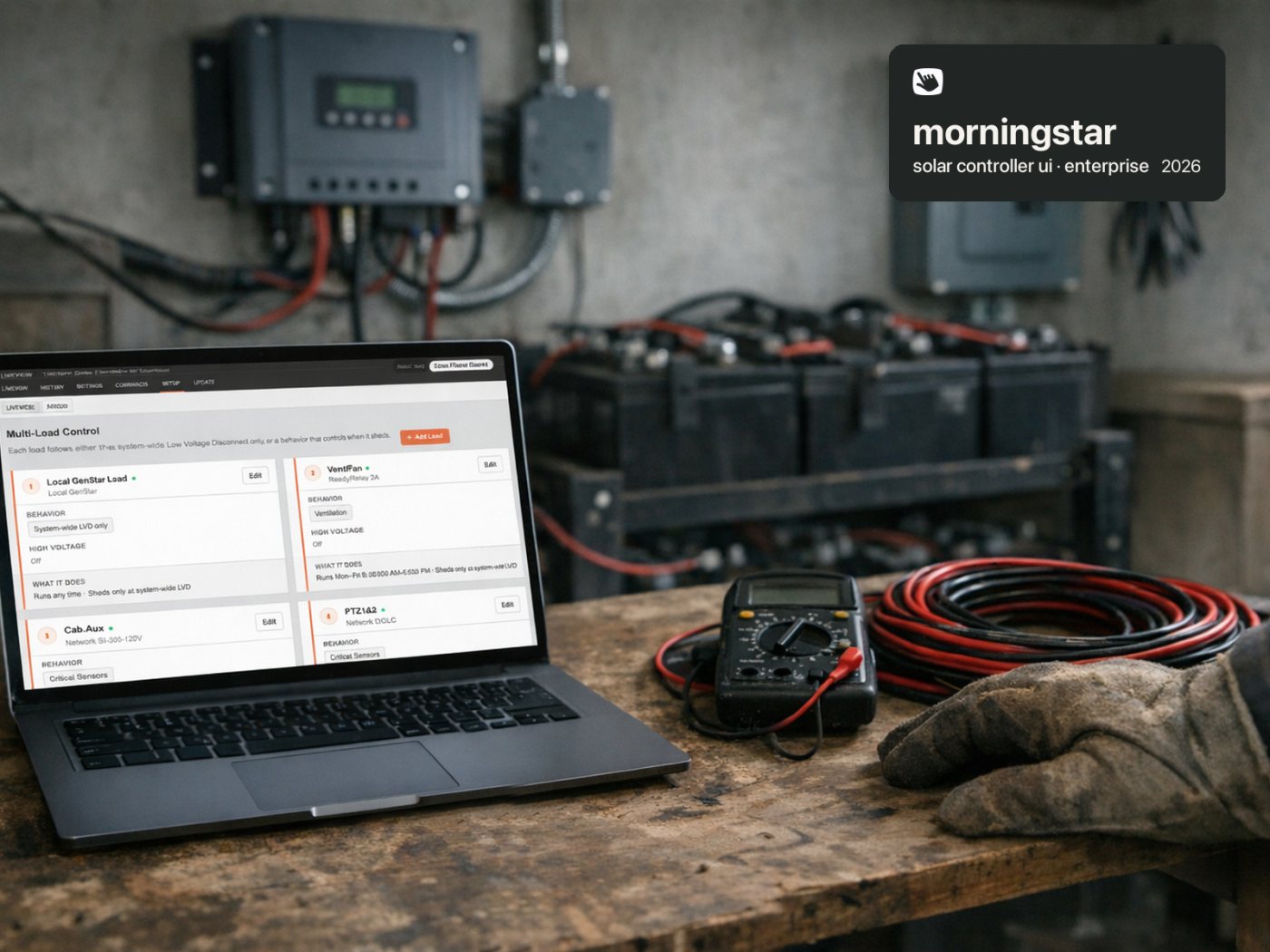
Live View is the web interface served from inside Morningstar's solar charge controllers. It showed a lot of data but not much clarity. I redesigned the first-run setup and the main dashboard so an electrician on site can tell, in seconds, whether the system is healthy and safe.

Role
UX design and functional prototype
Client
Morningstar Corporation
Length
4 weeks, kickoff to handoff
visit liveview.figma.site ↗
1question the dashboard answers first: is it working?
3steps, at most, in the first-time setup
~5 MBtotal asset budget, served from the device itself
4 weeksfrom kickoff to engineering handoff
The problem

Lots of data, not much clarity

Morningstar makes solar charge controllers used around the world. Live View is the small web interface each controller serves locally, so an installer can configure and monitor the system from a laptop on site.

The people using it are electricians. They understand volts and amps, but not necessarily solar system theory. The questions they kept asking were simple ones: is it working, and is this safe? The old screen answered neither directly. And a wrong setting during setup could damage real hardware.
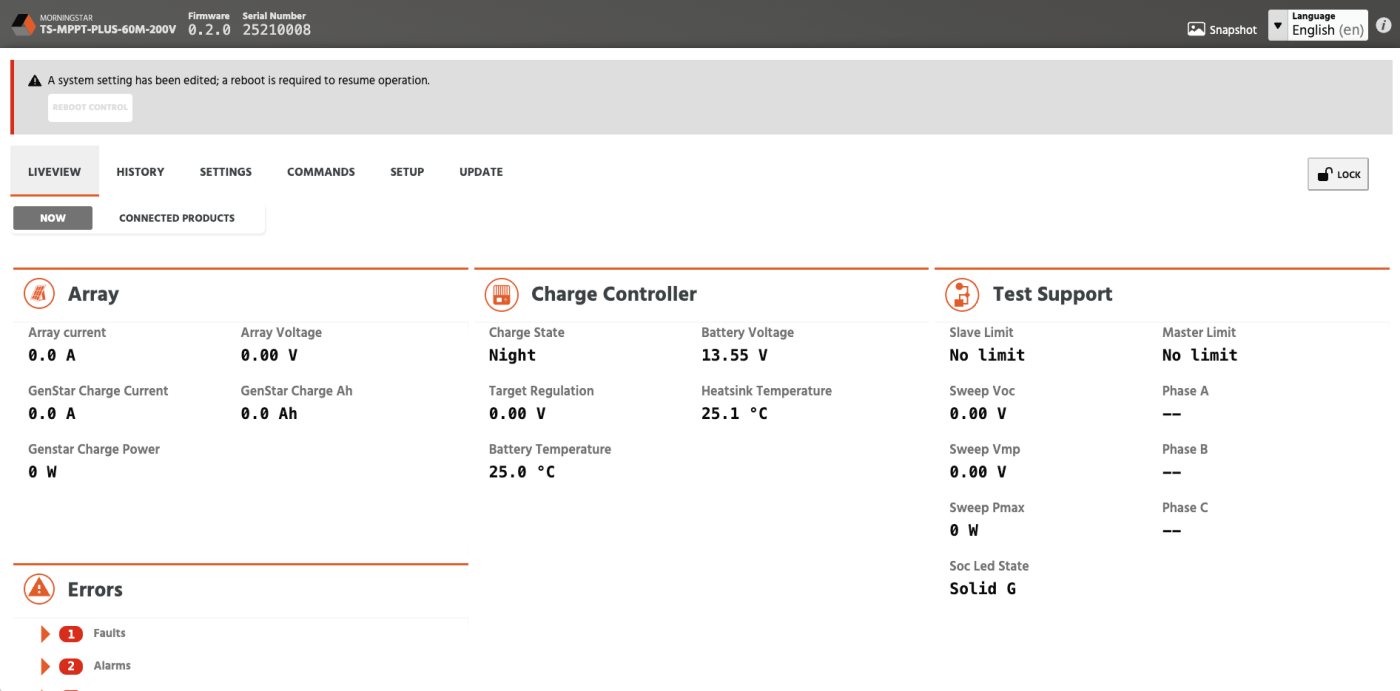
The original Live View "Now" tab, before the redesign. Every reading gets equal weight.
The constraints

Every screen has to earn its place

This interface lives on the device, not on a server. That rules out most of what a web designer would normally reach for: no custom fonts, no heavy visuals, no chart libraries. The whole thing had to fit inside an asset budget of roughly five megabytes.

On top of that, product, engineering and the remote-monitoring team all had a stake in it. The scope was set deliberately: not a full overhaul or a design system, but a reference implementation that makes the intent clear enough for Morningstar's engineers to build from.

1
~5 MB totalthe full asset budget, served from the controller
2
System fonts onlyno web fonts to download
3
No heavy visuals or librariescharts and gauges drawn lean
4
Safety-critical flowsa wrong setting can damage hardware
The limits the design had to work inside, from the project brief.
First-time setup

The risky choices first, everything else can wait

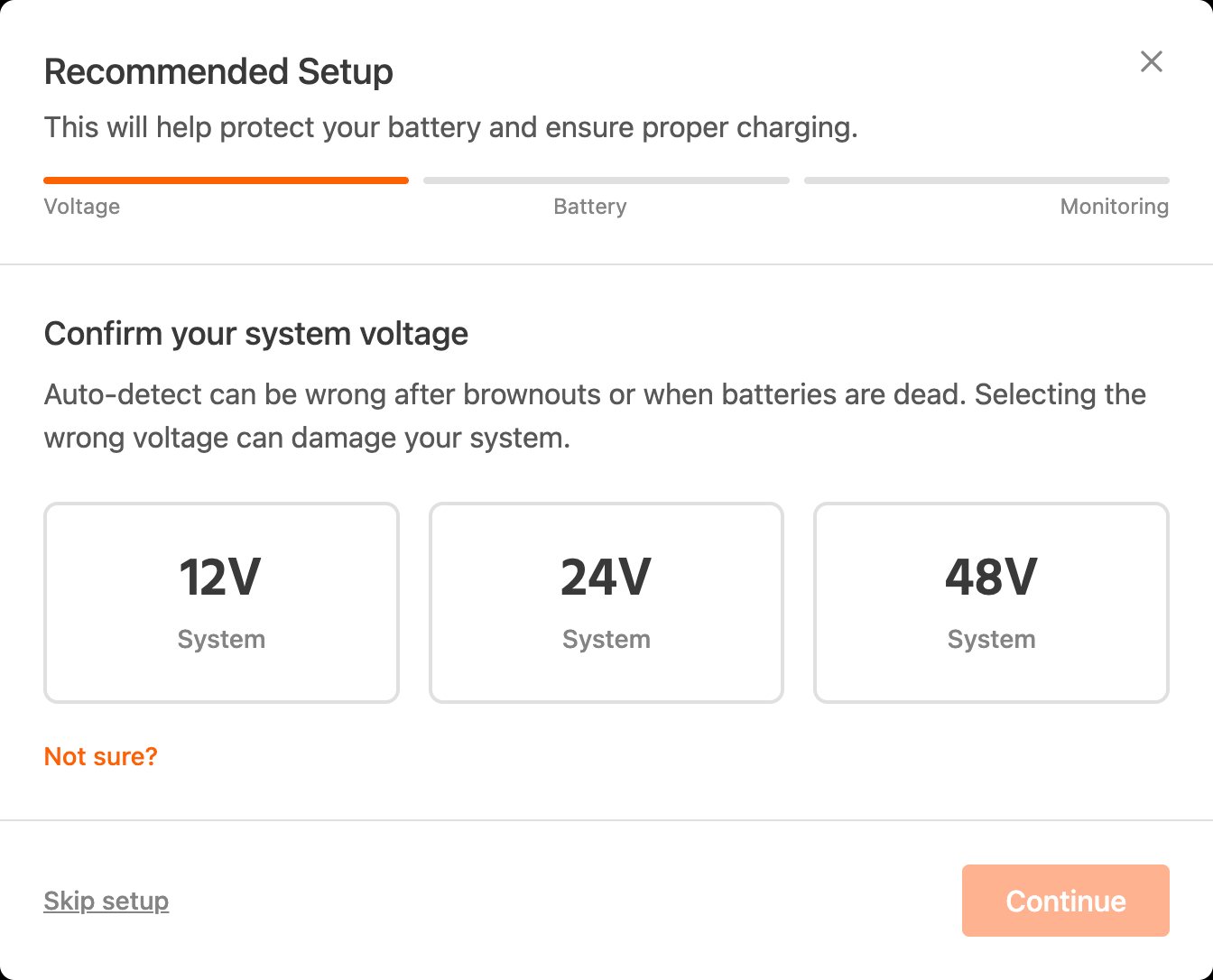
The setup wizard appears once, on first use. It is fully skippable and can be run again from Settings. It asks only what matters for safety, in the order that matters.

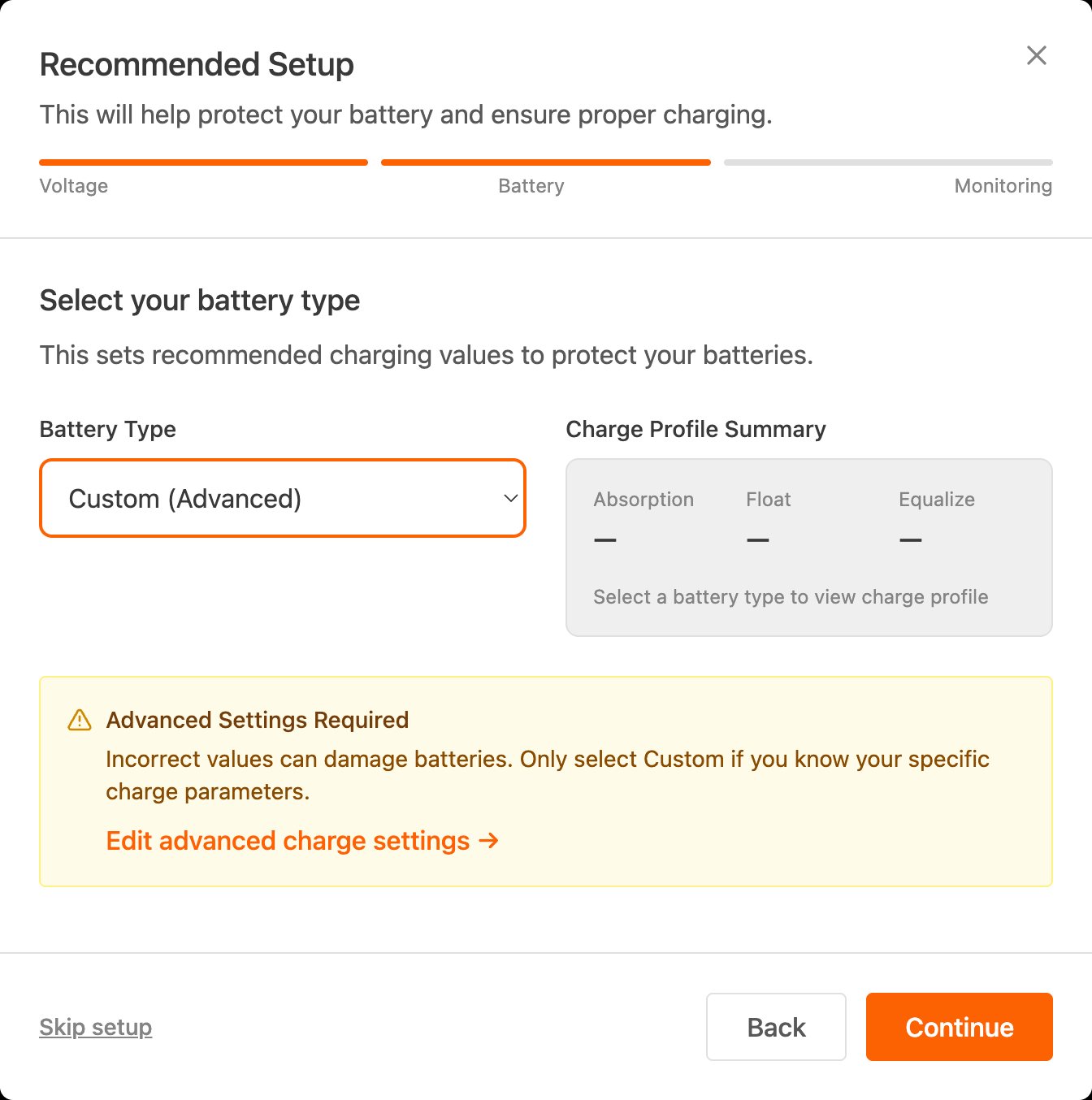
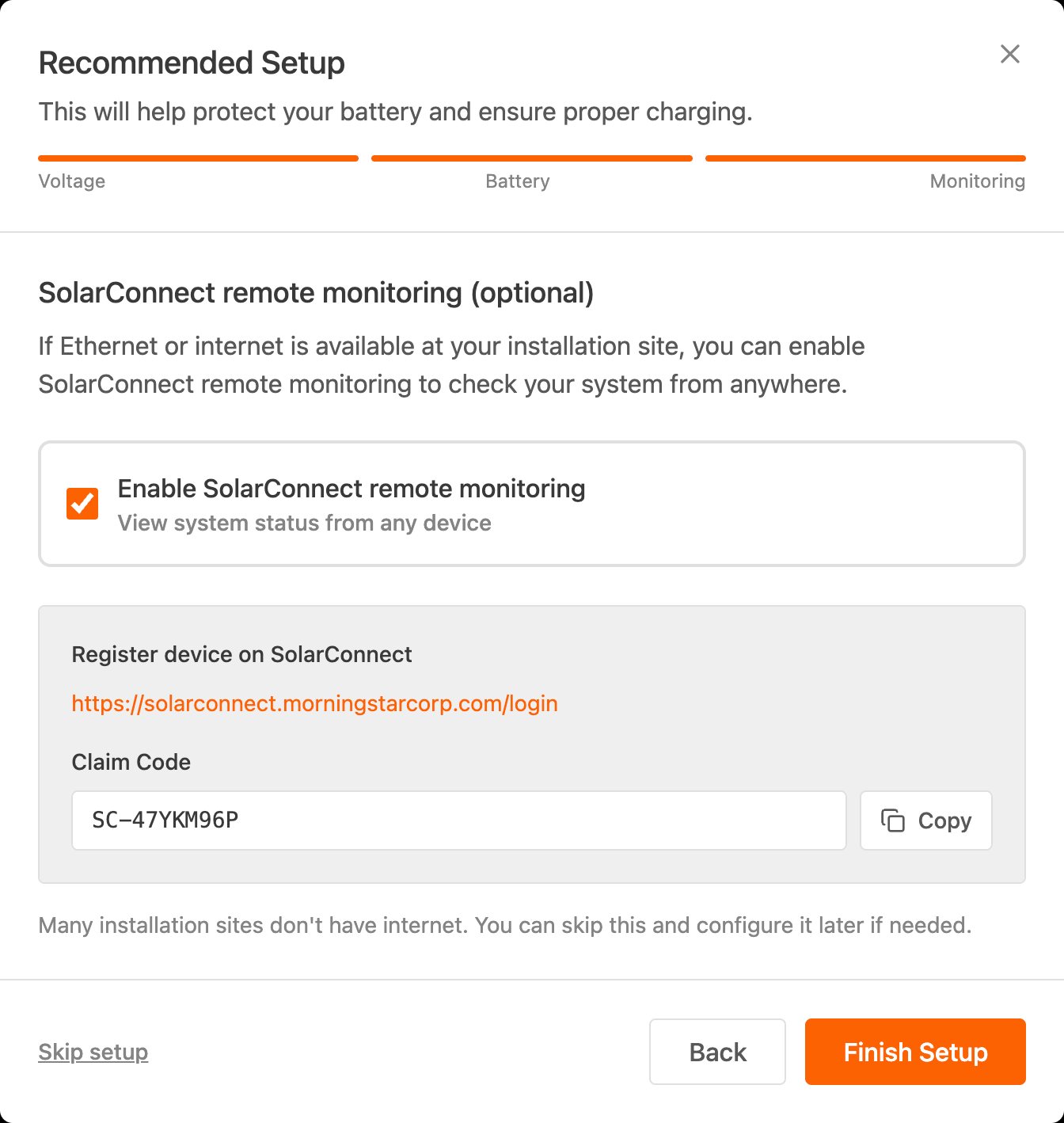
First, confirm the system voltage, with a clear warning if it doesn't match and a plain explanation of why it matters. Second, choose the battery type from presets, with the custom path guarded by a warning. Third, and optional, connect remote monitoring, with no assumption that the site has internet at all.

1 · Confirm system voltage1 · Confirm system voltage
2 · Select battery type2 · Select battery type
3 · Remote monitoring (optional)3 · Remote monitoring (optional)
Three steps, at most. Custom battery settings sit behind a warning, because incorrect values can damage batteries.
The dashboard

Status first, detail on demand

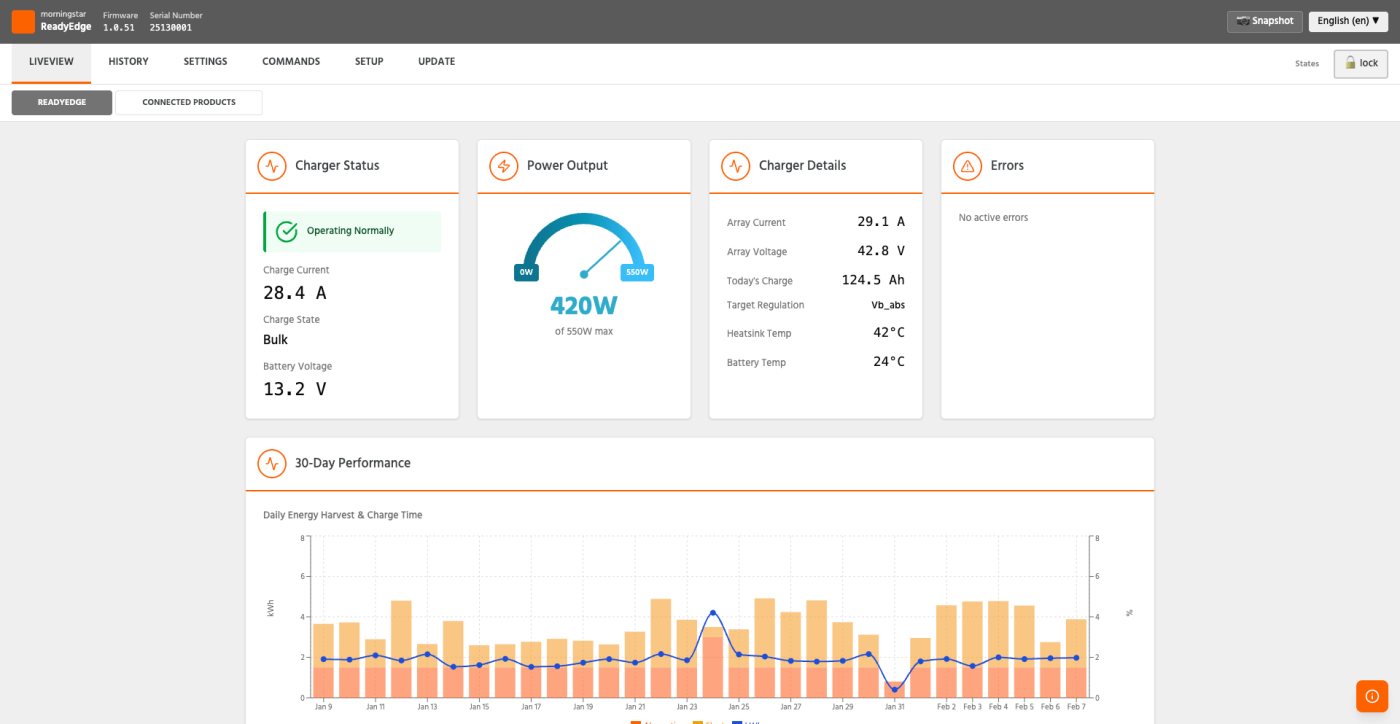
The old dashboard was a row of metric-heavy cards, one for the array and one for the controller. I replaced the lead card with a Charger Status card: a plain "Operating normally" state plus only the three readings that confirm it, charge current, charge state and battery voltage.

Everything else still exists. Array current and voltage, charge totals and thermal data moved into a Charger Details card that opens up when someone needs it. Advanced data is there, it just doesn't lead. Confidence comes first.

Before: every reading, equal weightBefore: every reading, equal weight
After: a status card leads, details followAfter: a status card leads, details follow
The "Now" dashboard, before and after.
Making performance readable

Is this good output for this system?

A wattage number on its own means little to someone who doesn't know the system's peak. A semicircle gauge puts current output against the system's historical maximum, using a neutral gradient rather than red, yellow and green, so normal variation never looks like an alarm.

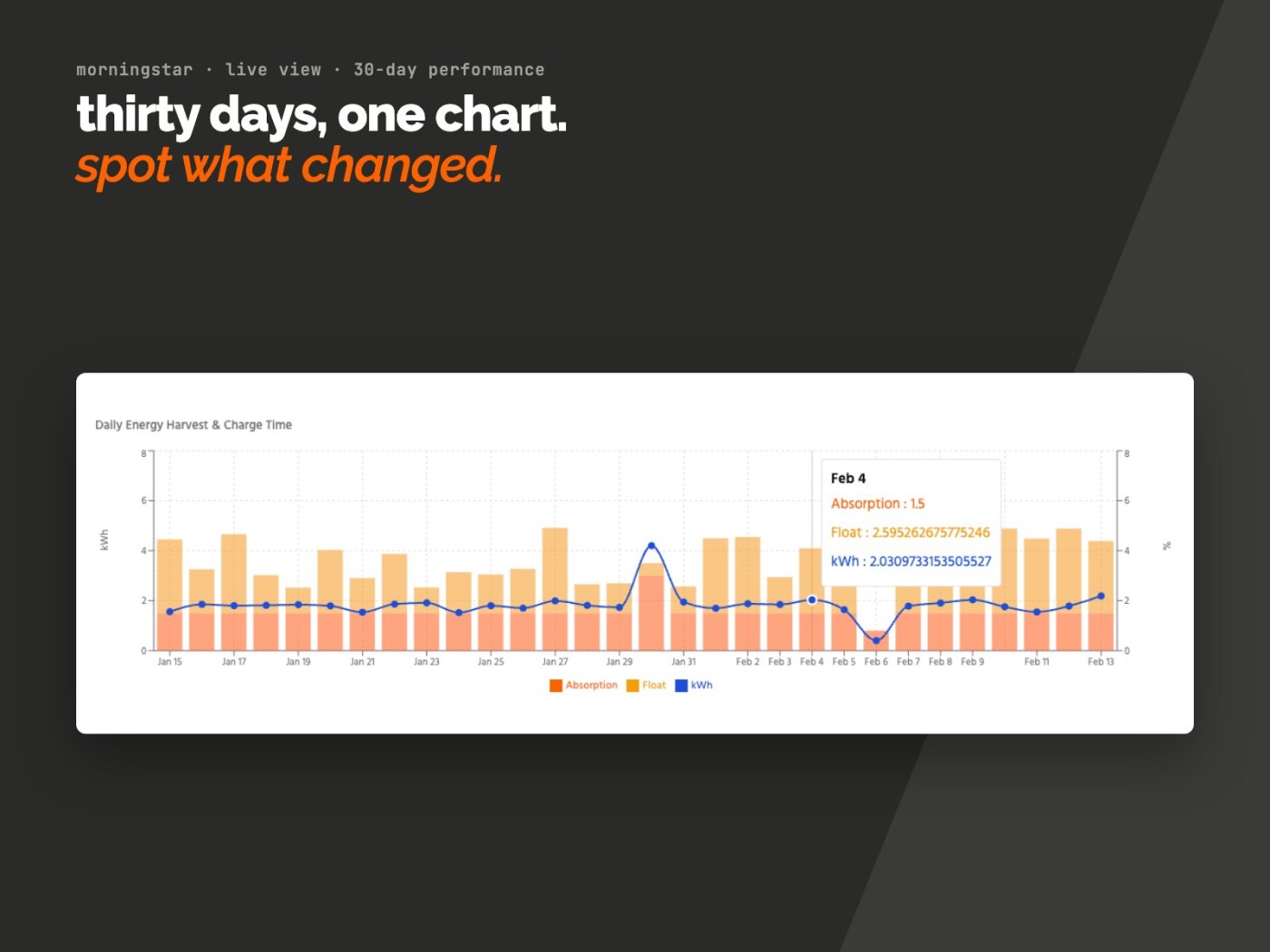
Below it, one shared chart covers thirty days: a line for daily energy harvested and stacked bars for absorption and float time. One glance shows an odd day, how the battery has been behaving, and whether the system responded to the sun the way it should.

Thirty days in one chart: energy as a line, absorption and float time as stacked bars.
Handoff and after

Validated in real implementation

The work moved through tight feedback loops. Pieces were locked once everyone agreed on them, starting with the wizard, and clickable prototypes settled questions that would otherwise have needed meetings. The handoff was a clickable prototype, a code-based reference export, a design intent summary and engineering notes.

Morningstar's engineers then built it. In the retrospective afterwards, their team said implementation "went super fast", and that "shipping is the best success metric, and we cleared that one pretty readily." Morningstar later came back for a second, larger project.

  1. Week 0kickoff, scope aligned, assumptions locked
  2. Weeks 1–2setup wizard design and iteration
  3. Week 3dashboard redesign and visualisation
  4. Week 4refinement, validation and handoff
  5. Afterbuilt by Morningstar's engineering team
Four weeks from kickoff to handoff.
Looking back

What I'd tell another designer

Embedded UX isn't about showing everything. It's about showing the right thing, at the right time, to the right person, especially when a mistake costs real hardware.

And treat the constraints as the brief. Five megabytes and system fonts forced every screen to justify itself, and the product is clearer for it.